
Your phone isn’t the only thing competing for your attention. Avoiding digital distractions while working starts with reducing the small interruptions that pull you away from a task: silence nonessential notifications, set times to check messages, and work in focused blocks. A simple Pomodoro rhythm is 25 minutes of work followed by a 5-minute break.
It’s easy to blame a wandering mind on a lack of discipline. But every alert, open tab, and quick message check creates another choice, making focused work harder. A calmer approach is to notice what pulls your attention, then shape your digital environment around the task at hand.
This guide shares practical ways to do that, from tracking screen habits and setting messaging boundaries to moving your phone out of reach. You’ll also learn how focused work habits and structured breaks can create a steadier rhythm, without relying on willpower to ignore every interruption.
Key Takeaways
- Model focused work by setting clear communication expectations and protecting time for tasks that need sustained attention.
- Use a Pomodoro rhythm, such as 25 minutes of focused work followed by a 5-minute break, and adjust the pace to suit the task.
- Set specific times to check messages, close unnecessary tabs, and let colleagues know when you’re concentrating.
- Silence nonessential phone notifications or place your phone out of reach to reduce attention-grabbing cues.
- Notice which digital habits interrupt your workflow, then remove or limit the triggers that pull you away most often.
1. Managers modeling focused work habits
Managers shape attention through the work habits they demonstrate. A leader who blocks time for a complex task, silences notifications, and responds to routine messages later makes focus visible. In a study involving 137 users at three Fortune 500 companies, workers spent 9% of their work time resetting concentration after digital task-switching, nearly four hours per week. A manager can reduce avoidable switches by protecting focus time and explaining when urgent contact is appropriate.
Make the practice specific. Before a creative session, name the task, close unrelated windows, and set a visible timer. A kitchen timer can mark the session without adding another screen or notification. For writing, leave a “TK” note beside a fact to verify later instead of opening a browser mid-draft. This preserves your train of thought while saving the research for a separate pass.
Ali Abdaal’s video explores common focus mistakes and practical ways to manage distractions:
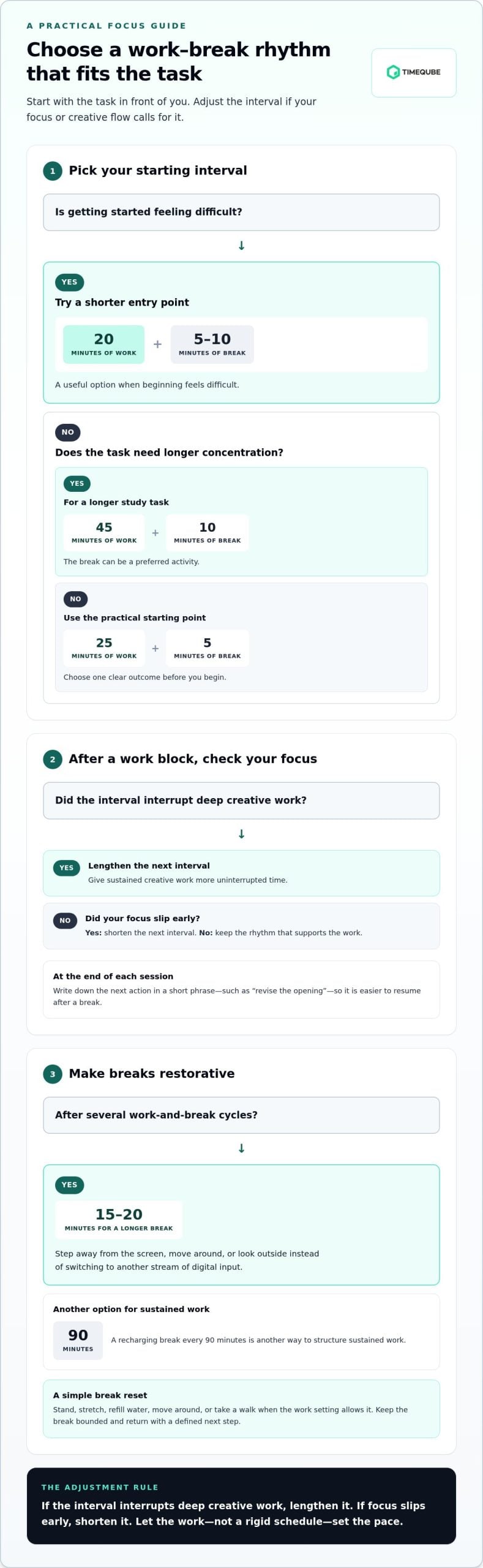
For a defined work interval, try the classic Pomodoro pattern: focus for 25 minutes, then take a 5-minute break. Choose one clear outcome before starting, such as sketching three concepts or drafting a page. When the timer ends, note where you stopped. That cue makes it easier to return after the break without reopening every tab to reconstruct the task.
Focus and distraction-blocking apps can help when a browser or social feed is the main trigger. Block those sites for the session, allow only the tools needed for the task, and silence phone notifications. Managers should follow the same settings. Sending nonurgent messages during protected work time weakens the boundary, even when the team has been asked to stay focused.
Effort pacts add social accountability. A manager and colleague can agree to work quietly for one session, name a deliverable, and compare progress at the end. Keep the check-in brief and focused on effort, not surveillance. For example, a designer might refine a layout while a writer drafts an opening. Independent tasks let each person retain creative ownership.
After a session, managers can ask which interruption broke concentration and adjust the routine. If chat alerts caused a switch, mute that channel during the next block. If an unclear brief prompted repeated browsing, define the next action before restarting. These short reviews make focus a team practice, not a test of individual willpower.
2. Pomodoro timers and structured breaks
Take a brief break after a focused work block, then return with a defined next step. A practical starting point is 25 minutes of work followed by a 5-minute break; adjust the rhythm when a task needs longer concentration.
The Pomodoro method gives a session a clear endpoint. Set a timer, choose one deliverable, and keep unrelated tabs closed until it rings. A creative worker might use one session to outline a scene, then spend the break standing, stretching, or refilling water. Choose a timer that marks the work interval without becoming another screen-based distraction.
Different tasks can need different intervals. Try 20 minutes of focused work followed by a 5-to-10-minute break when beginning feels difficult. For a longer study task, another approach pairs 45 minutes of work with 10 minutes of a preferred activity. A university student, for example, could draft a section before taking a planned walk instead of checking social media between paragraphs.
Keep breaks restorative and bounded. Step away from the screen, move around, or look outside rather than replacing one stream of digital input with another. After repeating several work-and-break cycles, take a longer break of 15 to 20 minutes. A 10-minute walk in nature is one possible reset when the work setting allows it.
How often should I take breaks to stay focused without losing momentum? Start with a 25-minute work block and a 5-minute break, then adjust based on the task and your concentration. For sustained work, a recharging break every 90 minutes is another option.
Communication breaks work best when scheduled. Set specific check-in windows, such as reviewing email twice a day, and close messaging apps between them. If your role requires faster responses, plan a brief check-in between work blocks instead of leaving notifications visible throughout each session. Tell colleagues when you’ll next review messages so they know what to expect.
Distraction breaks can also contain the urge to switch tasks. If an unrelated thought appears, write it on a notepad and schedule time to address it. For example, set a distraction break in 20 minutes, finish the current paragraph, then review the note. This gives attention a clear boundary without requiring you to suppress every impulse.
At the end of each session, write the next action in a short phrase, such as “revise the opening” or “choose the final image.” That cue makes it easier to resume after a break. If a timer interrupts deep creative work, lengthen the next interval; if focus slips early, shorten it. The right rhythm supports the work and keeps breaks intentional.
3. Reducing interruptions from messaging and social media
Start by identifying three sources of interruption: internal, external, and environmental. An internal distraction might be worry about an unfinished task; an external one could be a message alert. Environmental triggers include a noisy room or a phone within reach. During one work session, note each interruption and its source. The record helps you spot patterns before deciding what to change.
Messaging can interrupt attention even when you don’t answer. Knowledge workers are interrupted by email, instant messages, and other digital distractions an average of 14 times per day. They check communication apps every six minutes on average. Each check can shift mental focus from a creative task to another demand. Close messaging apps during concentrated work, then reopen them at a planned check-in.
Give communication a clear schedule. For example, review email in the morning, after lunch, and before leaving work. If those windows don’t suit your role, choose times around deadlines and urgent responsibilities. Tell teammates when you’re concentrating and when you’ll respond. Managers can support this boundary by allowing a reasonable interval for replies before following up on nonurgent messages.
Social media can turn a quick check into a browsing detour. Close unrelated browser windows and keep only the page needed for the current task. Move tempting apps off your phone’s home screen, or turn off mobile data during a writing session. If you need online research, write down the question first and open only the sources required to answer it.
Website blockers can add friction when self-control feels strained. Block social media and other distracting sites during work periods while keeping essential tools available. Removing redundant apps can also reduce prompts to check your screen. If a site is necessary for a project, schedule a research interval, capture useful findings, then close the tab before returning to your draft.
Background noise needs a separate response from digital alerts. Try one session with quiet, then another with steady instrumental music, and compare how easily you return to the task. Ask a colleague to observe whether music helps or distracts. In a shared room, use a clear signal, such as a closed door or a calendar block, to reduce avoidable interruptions.
When attention slips, identify the trigger before changing your setup. If a message caused the switch, mute that channel; if an open browser led to social media, close extra windows. Refocusing after interruption can take about 23 minutes. A brief note about what diverted you can reveal recurring patterns, helping prevent the same interruption from shaping the next work session.
4. Removing phone and notification distractions
Phones can turn a work session into a series of attention shifts. Workers may spend as much as two hours of their workday on their phones. Start by deciding whether you need your phone for the task. If not, silence it and put it out of reach. If you need it for work, keep only essential tools accessible and remove attention-grabbing alerts.
On Windows, use Focus settings; on Mac, use Focus mode. On iPhone and Android, use Focus or Do Not Disturb settings. On each device, silence nonessential notifications, hide banners, and allow only urgent contacts or work-critical apps.
For a distraction-free workspace, keep the task’s main device and necessary materials on your desk, then move phones and unused devices out of sight. Close unrelated tabs, clear your desktop, and keep a short written task list beside your screen.
Notification settings matter more than the number of apps installed. Turn off sounds, banners, and lock-screen previews for social media, shopping, and news apps. Keep alerts for tools that support immediate work, such as a calendar reminder for a scheduled meeting. Review your settings when your responsibilities change.
Set a separate boundary for messaging apps. Mute group chats during focused work, then check messages at planned intervals. If a teammate needs to reach you urgently, agree on one channel for urgent requests. This helps break the habit of checking every device whenever a screen lights up.
Separate devices by purpose where possible. Use a computer for writing or design, and a tablet for reading reference material. Sign out of personal accounts on a work device, remove redundant apps, and close messaging windows before starting. These steps reduce visual cues that prompt unplanned task switching.
Before learning or reading, silence alerts. A notification can break your train of thought even when you don’t respond. For online courses, keep the lesson in one window and close email or social media. At the end of the session, restore any alerts needed for your next task.
Test your setup with one focused work block. Notice which alert or device still pulls your attention, then change that setting directly. If your phone remains tempting when silent, put it in another room. If an essential notification interrupts concentration, adjust its sound or delivery rather than turning off every alert.
Silencing your phone can stop notification sounds from drawing attention away from homework. If it’s too tempting to use, turn it off or give it to a parent or guardian until the session is over.
5. Common digital distractions
Digital distraction is rarely one dramatic interruption. It often comes from small switches between apps, browser tabs, and personal tasks. In a study of workers at three Fortune 500 companies, participants toggled between apps and websites approximately 1,200 times per day. That pattern can make a computer feel busy while creative work advances slowly.
Social media is a common detour because its feeds offer new material with each check. A Facebook notification, a friend’s message, or a quick search can pull attention from a draft. Workers spend around 42 minutes per day handling personal tasks on their phones while at work. Notice which cue starts the detour, then remove that cue or give it a scheduled place.
App switching can also disguise itself as productive research. An open source, reference page, or email may seem relevant, but each extra window creates another path away from the task. Many employees switch between 5-10 different apps every hour. Before opening a new tab, write down the question it should answer. If it can wait, add it to a later research list.
Measure the pattern instead of relying on memory. Track time spent on digital activities for two weeks, then compare actual use with your estimate. Record the task, the interruption, and what you did next. For example, note whether checking a message led you back to a design file or into several unrelated pages.
How can I measure whether digital distraction strategies are improving my productivity? Compare completed work, time spent on the priority task, and interruptions across the same two-week period before and after a change. A simple log can show whether closing extra tabs or silencing alerts helps you finish planned work with fewer switches.
Tie the measure to the work, not just screen activity. A creative worker might track drafts completed, revisions made, or concepts prepared during each work period. Pair that output with a note about attention: did you stay with the task or repeatedly leave it? Together, these measures distinguish useful computer time from activity that only looks busy.
Choose one distraction to address first. If friends’ messages prompt frequent checking, mute the conversation during a work block and return to it later. If browsing is the problem, keep the project file open and close unrelated windows. Review your notes at the end of the tracking period, then keep the change that supports concentration and meaningful output.
Timeqube: Timeqube for Mind/Body Therapies
Timeqube for Mind/Body Therapies gives practitioners a physical visual timer for structuring sessions without adding another digital screen. Its color-coded light signals offer a quiet visual cue for time, helping keep attention on the session instead of a phone alert. For workplaces, Timeqube for Business Meetings offers a similar way to keep discussions on track, while Timequbes with Your Logo add company branding. A physical timer won’t block messages or replace notification settings, but it can make time visible without checking a device. Visit timeqube.com to explore the options.
Make One Focus Change Your Starting Point
Choose one adjustment for your next work session and give it time to become familiar. You might leave your phone outside the workspace or decide in advance when to check messages. A small, repeatable boundary can make avoiding digital distractions while working less like a constant test of willpower and more like a deliberate way to begin.
Notice what changes in your attention and your work. If the adjustment helps, keep it. If it creates friction, change the setup rather than abandoning your intention to focus. Creative work needs room to unfold, and your routines should support that without adding pressure.
For a physical visual timer that can mark focused time without another screen, explore Timeqube’s options and contact Timeqube about focused work. Start with the boundary that feels easiest to maintain, then build from there. A calmer work rhythm begins with one considered choice.
Frequently Asked Questions
What are the most effective ways to avoid digital distractions while working?
The most effective approach combines clear task boundaries with fewer attention cues. Before opening a project, write down the outcome you want, such as selecting a final concept or editing one section. Keep only the tools needed for that outcome visible. If a distraction comes up, note it for later instead of switching tasks. Review the note after the work period and decide whether it needs action.
How can I block distracting websites and apps during work hours?
Use your device’s website restrictions or a reputable blocking tool to limit specific sites and apps during work periods. Start with sites you open automatically, such as social feeds or news pages, while leaving essential project resources accessible. For research-heavy work, create a short allowlist of required sources. A separate work browser profile can also keep personal bookmarks and accounts out of sight.
What time-management techniques help maintain focus, such as Pomodoro or time blocking?
Pomodoro divides work into timed sessions with planned breaks, while time blocking assigns a task to a calendar period. Choose Pomodoro when it’s hard to get started or a task has clear stages. Use time blocking for larger creative projects, such as reserving a morning period for concept development. Add a transition note at the end of each block so you know what to do when you return.
How can I manage email, messaging apps, and work notifications without missing urgent messages?
Separate urgent communication from routine updates. Agree with colleagues on a channel for urgent matters, then mute nonessential alerts and review them at planned check-ins. For example, keep direct calls available for time-sensitive issues while silencing group chat banners during a design review. Share response expectations with the team, and update them when deadlines or responsibilities change.
What are the risks of blocking work apps or notifications, and how can I avoid missing important alerts?
Broad blocking can hide a deadline change, client response, or meeting update. Reduce that risk by allowing alerts from essential work tools and urgent contacts while muting promotional or social notifications. Before a focused period, check your calendar and open requests for time-sensitive items. Afterward, review notification summaries and missed messages before moving to another task.