
What if the best timeboxing tool is the one that asks least of your attention? Tasks can expand to fill the hours you give them, while a digital timer may pull you back to a screen just to check the time. Choosing timeboxing technique tools is less about adding features and more about making your available time visible without adding noise.
If you’re deciding whether to plan with a calendar, an app, paper, or a physical timer, start with the problem you want to solve. Do you need to see how work fits around appointments, keep task details in one place, or notice time passing without checking a screen? Each tool can help, but the right setup should make realistic timeboxes easier to follow, not create more switching and notifications.
This guide compares common planning tools and shows how to build a practical timeboxing system around the way you work. You’ll learn how to set useful time limits, choose a low-friction cue, and review your plan without treating adjustments as failure. A physical visual timer such as Timeqube can complement a calendar or task list with color-coded light signals, without requiring another screen interaction.
Key Takeaways
- Timeboxing sets a clear boundary for a task; the tool helps you see and use that plan.
- Define a meaningful finish point and choose a realistic work period before putting it in your schedule.
- Compare timeboxing technique tools by visibility, setup effort, interruption risk, portability, and review support.
- When priorities shift, pause, re-estimate, or reschedule rather than treating a changed plan as failure.
- A physical visual timer can add a tangible time cue alongside a calendar or task list, without digital software.
What Is Timeboxing, and Which Tools Help You Use It?
Timeboxing gives a task a planned duration and a clear boundary. Instead of working until something feels finished, decide what you’ll work on, how long you’ll give it, and what you aim to complete in that period. The boundary is a guide, not a guarantee that every task will fit neatly inside it.
The method and the tool play different roles. The method defines the structure; a calendar, task app, paper plan, or visual timer helps make that structure visible and easier to follow. A timebox can help you focus on the current task and weigh priorities against the time you actually have. Its value is in making the plan clearer, so you can work with more intention and revise when needed.
Timeboxing, time blocking, and task lists: what changes?
These terms overlap, and people don’t always use them in exactly the same way. Time blocking often means reserving a calendar slot for work. Timeboxing also gives work a defined period and an intended stopping point. A task list records what you hope to do; a timebox adds when you’ll do it and where the boundary falls. A calendar block can therefore serve as the timebox, while the task list supplies its content. Timeboxing on Wikipedia offers a broader overview of the method and related approaches.
What a timeboxing tool needs to do
A useful tool makes the current task and its time boundary easy to notice. It should also be quick to set up and simple to adjust. If planning requires extensive data entry or repeated screen checks, the system can become another demand on your attention. Choose a format that helps you see what matters, then review and revise the plan when priorities change.
For example, write “draft the meeting agenda” on a task list, reserve a calendar slot for it, and use a visible cue to stay aware of time. Each element has a distinct purpose: the list stores the task, the calendar shows where it fits, and the cue keeps the boundary present while you work. A physical visual timer can provide that cue without requiring another screen interaction. Timeqube uses color-coded light signals to support time awareness without digital software.
The right combination depends on where you need the most clarity. A calendar can show how work fits into the day. A task app can keep details close to the work. Paper can offer an offline overview, while a visual timer can make elapsed time easier to perceive at a glance. These are practical tangible time management tools, and they can work alongside a digital plan rather than replace it. Aim for a light-touch setup that makes time visible and leaves room to adapt.
How to Build a Timeboxing System, Step by Step
A useful timeboxing system starts with the work, not the timer. First decide what a meaningful next step looks like. Then choose a realistic period and make its boundary visible. The plan should guide attention without turning every open minute into scheduled work.
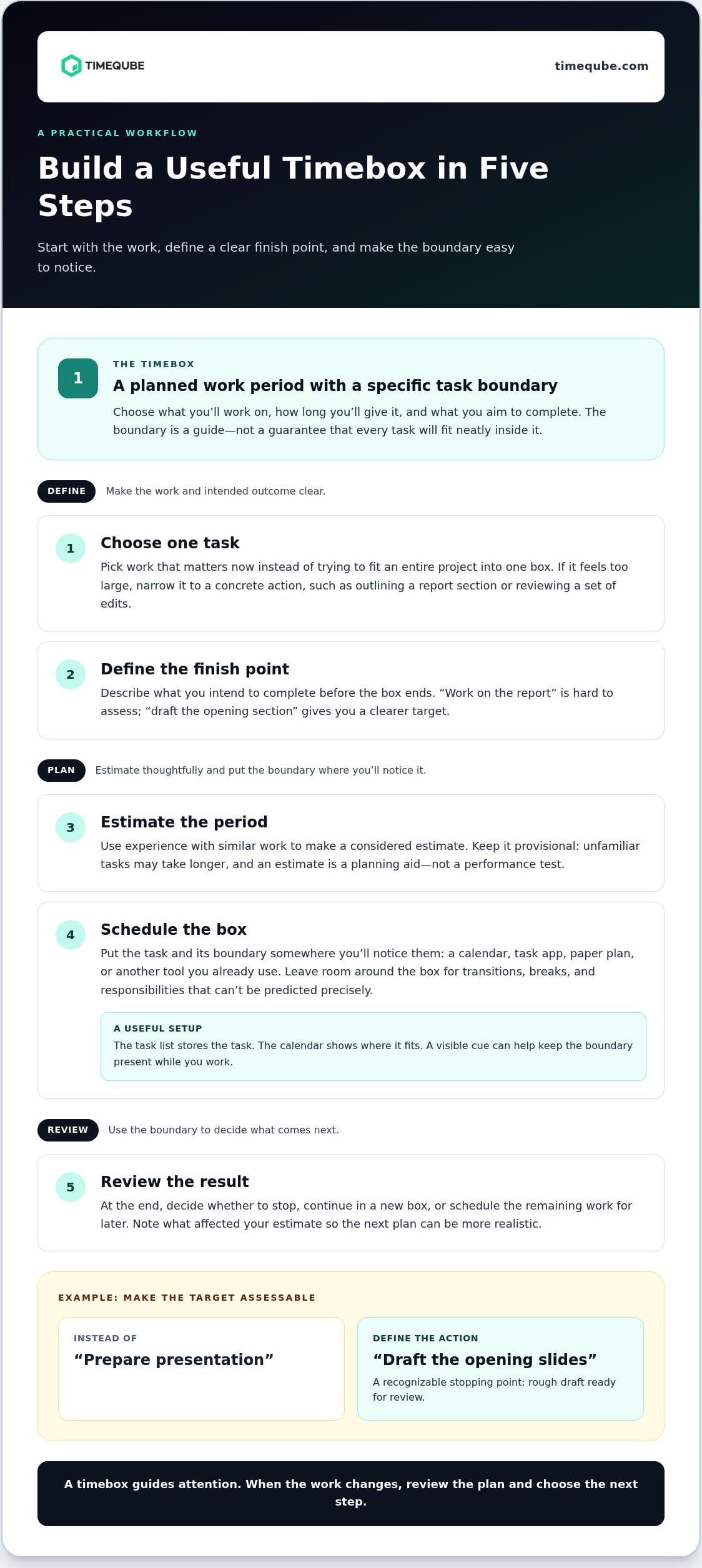
A timebox is a planned work period with a specific task boundary. Use this five-step workflow to create one:
- Choose one task. Pick work that matters now, rather than trying to fit an entire project into one box. If the task feels too large to begin, narrow it to a concrete action, such as outlining a report section or reviewing a set of edits.
- Define the finish point. Describe what you intend to complete before the box ends. “Work on the report” is hard to assess; “draft the opening section” gives you a clearer target.
- Estimate the period. Use experience with similar work to make a considered estimate. Treat it as provisional. Unfamiliar tasks may take longer than expected, and an estimate is a planning aid, not a performance test.
- Schedule the box. Put the task and its boundary where you’ll notice them: in a calendar, task app, paper plan, or another tool you already use. Leave room around the box for transitions, breaks, and responsibilities that can’t be predicted precisely.
- Review the result. At the end, decide whether to stop, continue in a new box, or schedule the remaining work for later. Note what affected your estimate so the next plan can be more realistic.
Set a useful timebox before work begins
Make the first action small enough to start without another planning session. For example, replace “prepare presentation” with “draft the opening slides.” Estimate how long that action may take based on similar work, then choose a stopping point you can recognize, such as a rough draft ready for review. Keep the estimate flexible. If the task is larger than expected, the box can end with a clear next step rather than a forced finish.
Make the plan visible and review what happened
Choose timeboxing technique tools based on what will keep the task and boundary easy to notice. A calendar or paper plan can show where the work fits; a task app can keep task details nearby. A timer or physical visual cue can make the passage of time apparent without repeated clock checks. For example, a physical visual timer such as Timeqube for visible time awareness can complement a task list or calendar rather than replace the plan.
When the boundary arrives, pause before extending the work. Ask whether the intended outcome is complete, whether the task needs another focused period, or whether priorities have changed. Record a brief note about the gap between your estimate and the work completed. Over time, these observations can help you shape boxes that fit your actual workload, while leaving space for breaks and transitions between tasks.
Timeboxing Technique Tools Compared: Calendar, App, Paper, or Visual Timer?
The best setup depends on what you need to see and what tends to interrupt your attention. A calendar shows where work fits in the day. An app can hold task details. Paper gives you an offline overview, while a physical visual timer makes the passage of a timebox easier to notice. These timeboxing technique tools can also work together, as long as each has a clear role.
| Tool | Setup effort | Visibility | Interruption risk | Portability | Review support |
|---|---|---|---|---|---|
| Calendar | Low to moderate | Strong for the day or week | Can involve screen checks and alerts | Easy across synced devices | Useful for reviewing planned versus available time |
| Task app | Moderate, especially with detailed tasks | Strong for task context | Varies with notifications and screen use | Often available across devices | Can keep notes and changing task lists together |
| Paper plan | Low | Clear at a glance | Low screen-related interruption risk | Limited to where you carry it | Supports simple handwritten notes |
| Physical visual timer | Low | Strong for the active timebox | Low screen interaction | Stays where you place it | Needs a separate plan for task review |
When a calendar, app, or paper plan is the better fit
Choose a calendar when appointments, shared availability, or the order of your day determine when focused work can happen. Use a task app when you need notes, dependencies, or a list that changes as priorities shift. Paper suits a quick overview when you want to sketch the day without automation or cross-device access. A phone timer may be convenient, but opening a device can invite screen switching; the guide to why phone timers can interrupt focus explores that trade-off.
When a physical visual timer adds value
A physical visual timer can show that a timebox is progressing without requiring you to open a device or repeatedly check the clock. It doesn’t tell you which task matters or plan the day, so pair it with a calendar, task list, or paper plan. Timeqube uses color-coded light signals to support time awareness without digital software. A physical visual timer for time awareness can serve as a tangible cue for focused work.
Use the simplest combination that answers two questions: what am I working on, and how will I notice the boundary? For example, schedule a task in your calendar, keep its notes in an app, and use a visible timer during the work period. If screen interaction is a source of distraction, keep the plan in paper or calendar form and let a physical cue support the active box. The related guide on using a physical timer for focused work offers another view of this use case.
How to Keep Timeboxing Flexible When Work Changes
A timebox is a planning boundary, not a command to ignore new information. If an urgent request arrives or a task changes in importance, adjust the plan. The boundary helps you notice the change and choose what to do next; it shouldn’t force you to keep working on something that no longer deserves priority.
Use a brief reset when an interruption changes your direction. Pause the current task, note where you left off, and assess the new demand. Decide whether to return to the original task, revise its scope, or move it to another part of the day. A visible cue, whether a timer or a calendar block, can help you recognize the pause without treating the original schedule as fixed.
What to do when a task outlasts its timebox
First, check why the work ran long. Was the task larger than expected, or was the finish point too vague? Then choose deliberately: stop at a useful boundary, extend the session if the task still has priority, or schedule another timebox. Before switching, write the next action, such as “compare the final two drafts.” That note makes it easier to resume without reconstructing your thinking.
An interruption may also change the task’s value. If a new deadline or request takes precedence, capture the current stopping point and reschedule the remaining work. The goal isn’t to defend the original plan. It’s to make a considered trade-off rather than letting every interruption silently consume the day.
Reduce rigidity without losing the time boundary
Leave unscheduled space for transitions, unexpected work, and recovery. A calendar packed from morning to evening has no room to absorb change, so even a small interruption can make the plan feel broken. If priorities shift often, plan a shorter horizon, such as the next part of the day, then revisit later work when you have more information.
One difficult session doesn’t prove that timeboxing is a poor fit. Look for patterns across several work periods. Repeated overruns may mean a task needs smaller steps, a clearer endpoint, or a more generous estimate. Frequent interruptions may call for a different time of day or more open space between boxes. Treat the result as information for your next plan, not as a personal failure.
The right timeboxing technique tools should support these adjustments, not make them harder. Keep the plan easy to revise, and use a visible cue when it helps you stay oriented during focused work. For a tangible cue in a work setting, explore Timeqube for visible time awareness, a physical timer that uses color-coded light signals without digital software.
Using a Physical Visual Timer as a Timeboxing Cue
A physical visual timer can make a planned work period easier to notice without turning the timer itself into another screen to check. It doesn’t choose the task, set priorities, or replace your calendar or task list. Instead, it serves as a visible cue within the larger timeboxing system: your plan says what you’re doing, and the cue helps keep the time boundary present as you work.
This distinction matters. Timeboxing technique tools are most useful when each has a clear role. A physical cue can support awareness with less screen interaction, but it can’t determine whether a task is complete. Let the boundary prompt a brief decision: stop, continue in a new work period, or adjust the plan.
Where a visual timer fits in a timeboxed work session
First, define the task and its planned duration in a calendar, task list, or paper plan. Then place the timer where it’s easy to notice from your workspace. This keeps the plan separate from the cue and can reduce the need to unlock a phone or switch windows just to check the time. When the timebox ends, review your progress instead of assuming the work is finished.
For example, reserve time to review a document, write the task and intended outcome in your planner, and use a visible timer as a reminder of the work period. If an interruption changes the priority, pause and revise the plan. The timer isn’t a reason to push through a task that no longer matters. It simply makes the planned boundary more tangible while the session is underway.
Choose a cue that matches the setting
For individual work, look for a cue that’s visible from your usual working position and easy to use without returning to a screen. In a meeting, agree on the agenda and discussion boundary first; the cue can then help participants stay aware of the time set aside for that conversation. A physical timer supports the time boundary, while the agenda and meeting plan provide the purpose and structure.
Timeqube is a physical visual timer that uses color-coded light signals to support time awareness without digital software. For a meeting with a defined agenda, Timeqube for business meetings can provide a tangible cue alongside the schedule, not a substitute for it. The same principle applies to individual work: plan the task in your chosen tool, then use a visible cue to keep the timebox in view.
Keep the setup simple. If the cue helps you stay aware without frequent clock checks, it’s serving its purpose. If it becomes another distraction, change where it sits or use a different reminder. The best cue is the one that fits your environment and supports a plan you can still adapt.
Choose One Cue for Your Next Work Session
Your next step doesn’t need to be a complete overhaul. Pick one task, decide what a useful stopping point looks like, and test a time cue that fits your workspace. Afterward, notice whether it helped you stay aware of the boundary or whether another approach would feel more natural. Treat the setup as something you can refine, not a rule you have to get right on the first try.
The right timeboxing technique tools should support your attention without asking for more of it. If you’d prefer a tangible cue, Timeqube’s physical visual timer uses color-coded light signals to support time awareness without digital software. Timeqube offers visual timers for professional meetings and mind/body therapies, where a visible time cue can sit alongside the plan.
Explore the physical visual timer and consider whether a screen-free cue could make your next timebox easier to follow. Start with one task, observe what works, and shape a system that gives your work room to breathe.
Frequently Asked Questions
Is timeboxing the same as time blocking?
They’re closely related, and people sometimes use the terms interchangeably. Time blocking usually describes reserving calendar space for an activity. Timeboxing adds emphasis on a defined limit for that work period, often with an intended outcome. For example, you could block a morning slot for project work, then use separate boxes within it to review research and draft a section. The distinction is useful, but it isn’t universal.
Can timeboxing work without a digital calendar?
Yes. A notebook, whiteboard, or simple paper planner can show which tasks you intend to work on and roughly when. For instance, write a short morning plan with a few priority tasks and their planned periods, then mark changes by hand as the day unfolds. Paper can be practical when you want an overview without opening another app. The method depends on making a deliberate plan, not on a particular device.
How many timeboxes should I plan in one day?
There’s no ideal number for everyone. Base your plan on the work that genuinely needs attention, your fixed commitments, and the space you need between activities. If you’re new to timeboxing, start by assigning boxes to a small number of important tasks rather than scheduling every hour. At day’s end, note what displaced planned work. That gives you a better basis for deciding how much to schedule next time.
What should I do if an urgent task interrupts a timebox?
Pause and assess the urgency before switching. If the new task truly takes priority, capture your place in the current work and decide when to return to it. For example, leave a note with the file name and the next action you planned. If the request can wait, record it for a later review instead of immediately breaking your attention. This makes the response intentional, not automatic.
Can timeboxing help with tasks that have no clear finish line?
Yes. Give an open-ended task a process-based outcome instead of trying to declare the whole task finished. For ongoing research, you might aim to assess a defined set of sources or write down the main unanswered questions. For routine inbox work, choose a group of messages or a review period. A specific scope makes progress easier to recognize and gives you a sensible point to pause.
Is a visual timer useful if I already use a task management app?
It can be, if the app helps you organize work but doesn’t make passing time easy to perceive. The app can hold notes, deadlines, and task status, while a separate visual cue can keep the active work period in view. This is one reason timeboxing technique tools don’t need to duplicate one another. Keep each tool’s role distinct, and remove the cue if it adds more distraction than awareness.
How often should I review and adjust my timeboxing routine?
Review briefly after a work session, then look for recurring patterns during a regular planning check. A single overrun may reflect an unusual interruption; repeated overruns on similar tasks may point to estimates or task scope that need revision. You can also reassess when your workload or responsibilities change. Keep the review practical: identify one adjustment to test, such as narrowing a task or leaving more open space.